eNPS Surveys
Measure employee sentiment with automated, Slack-delivered surveys and view aggregated results directly in Branco.
What is it?
eNPS (Employee Net Promoter Score) surveys ask employees how likely they are to recommend your company as a place to work. Surveys are sent and completed entirely through Slack, and results are aggregated in Branco with both a quantitative score and qualitative follow-up feedback. It's a lightweight, low-friction way to track employee sentiment over time.
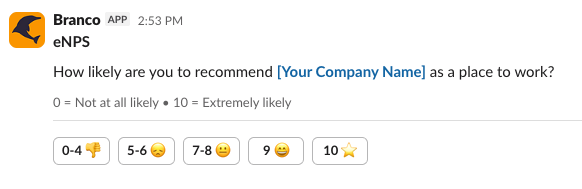
A single recurring question gives you a consistent, comparable signal of employee sentiment without survey fatigue.
How it works
- 👤 Employee
- 👤 Manager
- 🛠️ Administrator
As an employee, you'll receive eNPS surveys directly in Slack:
- Score prompt — You're asked: "How likely are you to recommend [Company] as a place to work?" on a 0–10 scale.
- Follow-up question — After submitting your score, you'll receive one follow-up question based on your response category.
- Reminder — If you don't respond within 24 hours, you'll receive one reminder the following day.
Typical workflow:
- Receive the survey prompt in Slack the day after the survey is activated.
- Select a score from 0 (Not at all likely) to 10 (Extremely likely).
- Answer the follow-up question that appears based on your score category.
Employees currently in a probation review period are not included in eNPS surveys.
As a manager, you can view eNPS results to understand team sentiment:
- Overall score — See the aggregated eNPS score across your team or the whole company.
- Sentiment breakdown — View the distribution of Promoters, Passives, and Detractors.
- Qualitative comments — Read anonymised follow-up responses to understand the reasoning behind scores.
- Participation rate — See how many employees responded out of those surveyed.
Individual scores and comments are never attributed to a specific employee. Results are only shown in aggregate to protect respondent privacy.
If you notice a shift in your team's eNPS trend, use it as a conversation starter in 1:1s — not to identify who said what, but to open a dialogue about what's working and what could be better.
As an admin, you control when surveys go out and how they are configured:
- Activation — Manually activate a survey cycle from the admin panel.
- Probation exclusion — Employees in an active probation self-review or Acknowledgement are automatically excluded.
See eNPS Settings for the full configuration reference.
eNPS results are only displayed once a minimum number of responses have been collected, to protect employee anonymity.
Understanding the eNPS score
The eNPS score is calculated from responses to the question: "How likely are you to recommend [Company] as a place to work?"
| Score | Category | Description |
|---|---|---|
| 9–10 | Promoter | Highly engaged, likely to advocate for the company |
| 7–8 | Passive | Satisfied but not actively enthusiastic |
| 0–6 | Detractor | Disengaged or dissatisfied |
eNPS = % Promoters − % Detractors
Scores range from −100 to +100. A positive score means more promoters than detractors. Scores above +20 are generally considered good; above +50 is excellent.
Follow-up questions
After submitting their score, employees receive one follow-up question based on their category:
| Category | Follow-up question |
|---|---|
| Promoter | "What's the main reason you'd recommend us?" |
| Passive | "What's one thing that would make you more likely to recommend us?" |
| Detractor | "What's the main reason for your score?" |
Responses are anonymised and visible to admins and managers in the results dashboard.
Getting started
- Navigate to eNPS in the left sidebar (or find it under Formal Reviews).
- Configure your survey settings in Company Settings → eNPS.
- Activate a survey cycle — the Slack survey will be prioritized to be the next message Branco sends to eligible employees. This may take up to 24 hours depending on their last Branco message.
- Monitor participation and results in the eNPS dashboard as responses come in.
Related features
- Feedback — Continuous feedback collected through Slack between review cycles.
- Performance Reviews — Formal review cycles that draw on feedback captured over time.
- Reports — Aggregate reporting across feedback, reviews, and eNPS trends.
- eNPS Settings — Configure survey frequency, activation, and results access.