Probation Reviews
An end-to-end probation experience — continuous visibility from day one, structured feedback throughout, and an evidence-backed formal review at the end.
Overview
When a new hire is added to Branco, they enter the probation pipeline automatically. Their manager, the management chain, and any administrator (including HR) can see them and the rest of the probation cohort at a glance — no surprises at review time.
Throughout probation, Branco quietly collects signal: bi-weekly self check-ins from the employee, ongoing manager prompts, and peer feedback woven into the team's normal weekly rhythm. By the time the formal review triggers, the manager has weeks of structured evidence to draw on — and the review itself is pre-populated from it.
Probation reviews shouldn't rely on memory or a last-minute scramble. Branco turns the entire probation period into ongoing, visible evidence — and an evidence-backed conversation at the end.
The probation pipeline
Every new hire is added to the probation pipeline automatically. The pipeline is visible to the employee's manager, the management chain, and any administrator. HR teams can be added as administrators to give them full visibility into the cohort.
The pipeline has two sections:
- In probation — employees in their probation window, awaiting formal review trigger.
- In formal review — employees whose formal review has triggered.
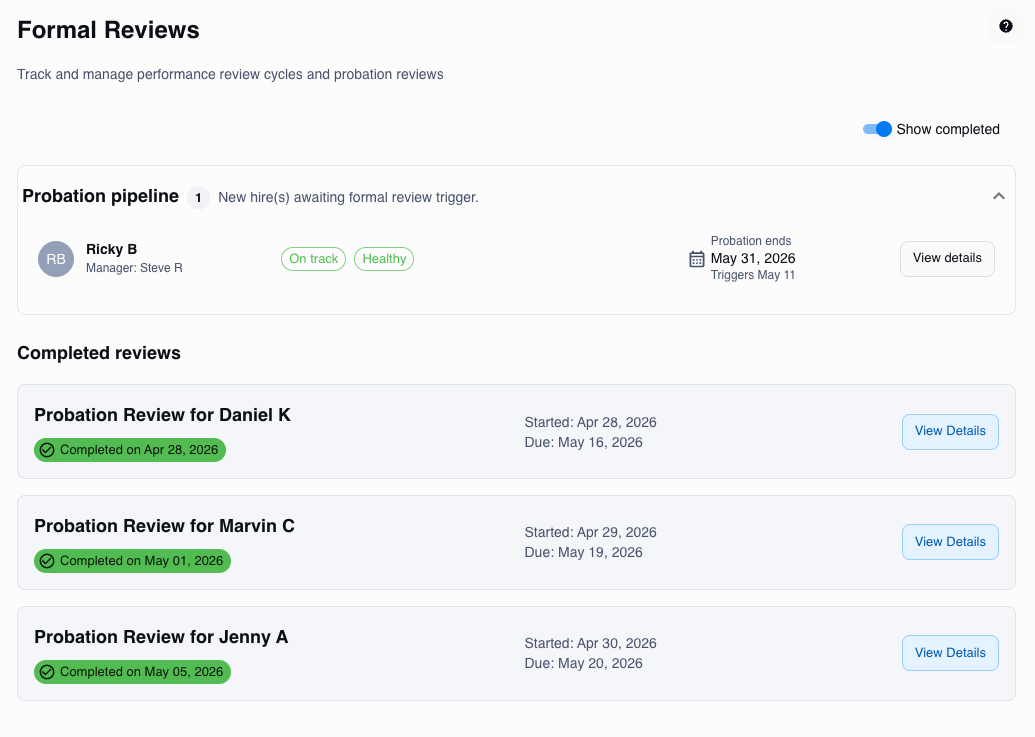
Each pipeline entry shows the employee's name, manager, probation end date, formal review trigger date, and two status indicators:
- On track / Behind on check-ins — whether enough self check-ins and peer/manager feedback have been collected so far.
- Healthy / At Risk — whether the feedback collected is positive overall, or surfacing concerns.
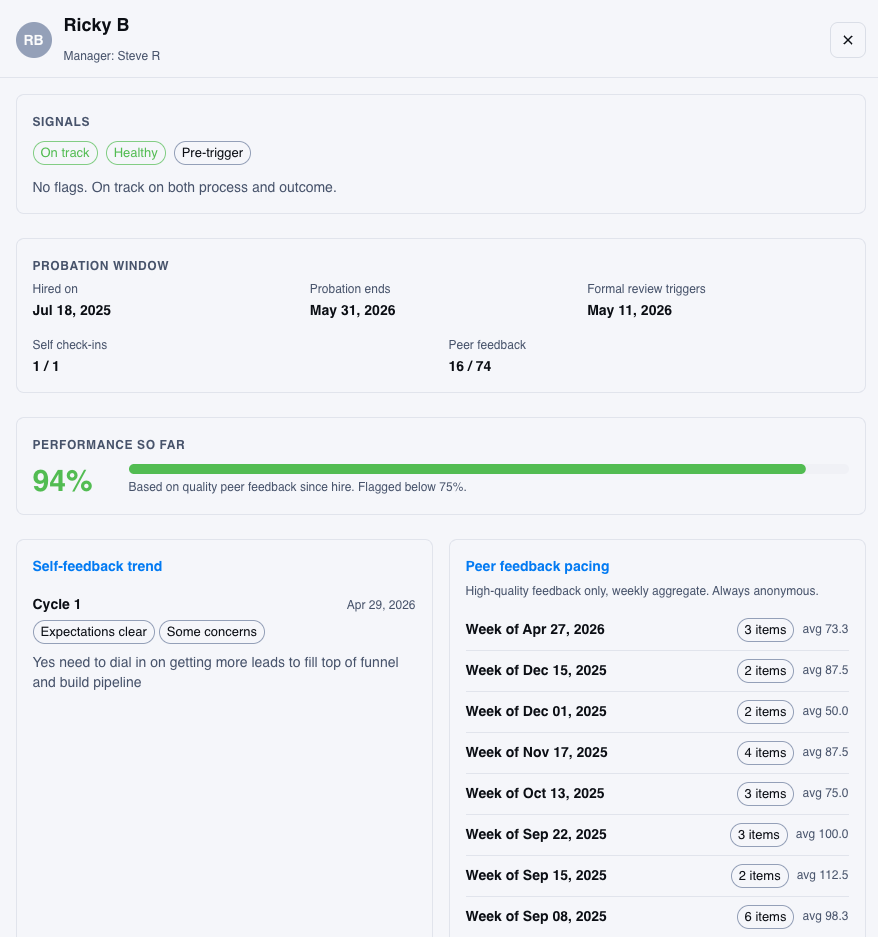
Clicking an entry opens a detail view with the full probation window, performance trend, self check-in history, and weekly peer feedback pacing.
How it works
1 — New hire enters the pipeline
When a new hire is added in your HRIS (e.g. BambooHR), Branco reads their probation end date and adds them to the pipeline. If no probation end date is set, Branco falls back to a configurable duration after the hire date (default 90 days).
The formal review trigger date is calculated automatically:
Trigger Date = Probation End Date − Review Window (default 25 days)
2 — Continuous feedback through the probation period
Three feedback streams run in parallel during the probation period:
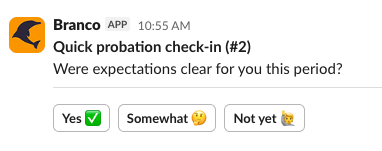
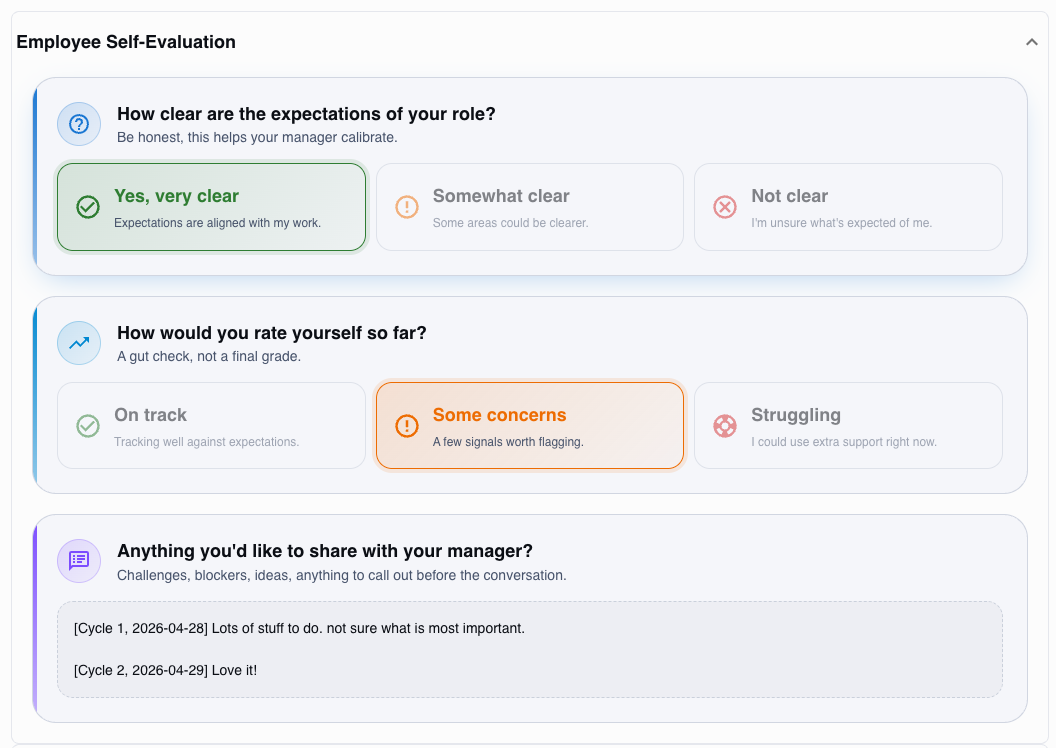
- Employee self check-ins — Bi-weekly Slack prompts ask the employee three questions: how clear their role expectations are, how they'd rate themselves so far, and an open text box for anything they want their manager to know. Two are simple button responses; one is open text.
- Manager prompts — The manager receives standard Branco feedback prompts about the employee, covering skills, competencies, goals, and action items.
- Peer feedback — Team members and assigned peer reviewers are asked about the employee as part of their normal weekly Branco prompts.
All three streams feed the pipeline status indicators and the eventual formal review.
3 — Formal review triggers
On the calculated trigger date, the employee moves from In probation to In formal review in the pipeline. The manager is notified and the formal review is created.
4 — Employee completes a self-review (optional)
If self-reviews are enabled in settings (default On), the employee is prompted to complete a final self-evaluation. Responses are pre-populated from their bi-weekly check-ins and are fully editable before submission.
If self-reviews are disabled, the workflow proceeds directly to the manager review.
5 — Manager completes the review
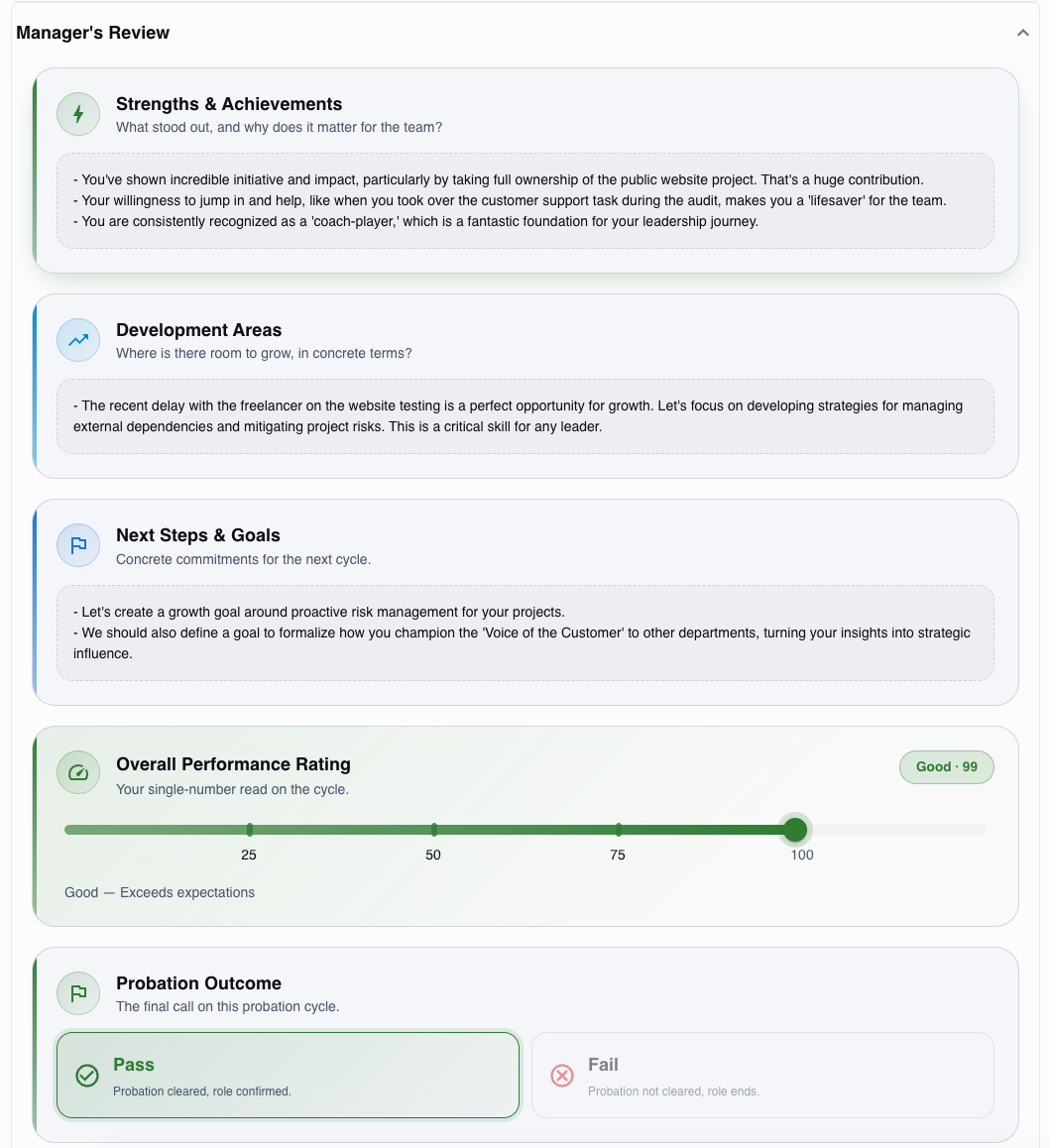
The manager's review is automatically pre-populated from peer feedback and manager feedback collected throughout probation. The manager edits any field, adds their perspective, sets an overall performance rating (0–125), optionally adjusts the employee's level, and records the outcome:
- Pass — the employee passes probation and normal Branco activity continues uninterrupted.
- Fail — the outcome is recorded and next steps are handled outside of Branco.
The review is composed of configurable sections, all of which can be turned on or off in settings:
- Intro & Psychological Safety
- Strengths & Achievements
- Development Areas
- Open Questions
- Career Goals & Aspirations
- Next Steps & Goals
- Positive Closing
See Probation Settings for the full section reference.
6 — Manager delivers the review
The manager has the review conversation with the employee, then marks the review as delivered in Branco.
7 — Employee acknowledges the review
If acknowledgement is required (default On), the employee confirms they have received and discussed the review. This is the final step and completes the probation workflow.
If acknowledgement is disabled, the workflow closes once the manager marks the review delivered.
If the employee passes, all normal Branco activity continues — nothing changes on their end.
What to expect
- 👤 Employee
- 👤 Manager
- 🛠️ Administrator
From your side, the probation experience is mostly lightweight Slack prompts:
- Bi-weekly check-ins via Slack — three quick questions about how things are going. Two are buttons; one is an open text box.
- Normal feedback prompts continue as usual throughout the period.
- A final self-review (if enabled by your administrator) — pre-populated from your bi-weekly check-ins, fully editable before submission.
- A review conversation with your manager, followed by a quick acknowledgement step in Branco (if your administrator has acknowledgement enabled).
If your administrator has self-reviews enabled, you won't be able to skip it — the manager review can't proceed until you've submitted.
You have full visibility into your direct report's probation throughout — not just at the end:
- The pipeline view shows their On Track / Behind on check-ins and Healthy / At Risk status at a glance, plus a detail view with the full feedback trend.
- Standard Branco prompts continue throughout — your responses on skills, competencies, goals, and action items feed the formal review.
- When the formal review triggers, you'll see a pre-populated draft drawn from peer feedback, your prompts, and the employee's self check-ins. Review it carefully — it's a starting point, not a final answer.
- You set the overall performance rating (0–125), optionally adjust the employee's level, and record the Pass / Fail outcome — then deliver the review and mark it delivered.
The detail view in the pipeline is the best place to start preparing — the feedback trend and self check-ins together usually surface the conversation themes before you write anything.
Probation Reviews are configured under Settings → Probation. Key things to know:
- The feature must be enabled via the Probation Active toggle before anyone enters the pipeline.
- HR teams can be added as administrators for full pipeline visibility — multiple admins are supported.
- Review timing is driven by the probation end date in your HRIS — if missing, Branco falls back to the configured duration after hire date.
- The review window, fallback duration, self-review requirement, acknowledgement requirement, level adjustment, and review sections are all configurable.
See Probation Settings for full configuration details, including HRIS field mappings and section toggles.
If a probation review triggers at an unexpected time, the first thing to check is the probation end date and hire date in your HRIS.
Related
- Probation Settings — Configure review windows, fallback duration, workflow toggles, and review sections.
- Troubleshooting & FAQ — Edge cases, known issues, and common questions.
- Performance Reviews — The standard review cycle that runs outside of probation.
- Feedback — Continues uninterrupted for the employee throughout probation.
- Integrations — Where your HRIS connection is configured.
- User Management — Add HR teams as additional administrators.